ocserv (AnyConnect server)
ocserv, the OpenConnect server, speaks the AnyConnect protocol that the app's SSL VPN profiles use with Server Type AnyConnect. This page installs it on Ubuntu and sets it up for every way the app logs in: a trusted certificate, password users, certificate users, a split-tunnel group, and the forwarding that takes the phones' traffic to the internet. Its last part sets up the profile in the app, on iPhone and on Android.
We ran these steps on our test server, Ubuntu 24.04 with 2 vCPUs and 2 GB of memory, on 7 November 2026, after removing the ocserv that was there, and read every setting back from the server. The phones' results named on this page come from the runs listed in Test results.
What you need
- An Ubuntu server with a public IPv4 address.
- A DNS name for it, such as
vpn.example.com, for the certificate. - TCP port 443 open for the TLS connection, UDP port 443 for DTLS, and TCP port 80 while Let's Encrypt issues and renews the certificate. Without UDP 443 the app still connects and carries everything over TLS.
1. Install ocserv
apt-get update
apt-get install -y ocserv
Ubuntu 24.04 installs ocserv 1.2.4. Its service starts at once and stops again with the 'server-cert' and 'server-key' configuration options must be specified: the sample configuration has no certificate yet. The next steps give it one.
2. Certificate
With TLS Server Verification on, the app's default, the server needs a certificate the phone trusts for the name in the profile. Ours comes from Let's Encrypt, with certbot in standalone mode:
apt-get install -y certbot
certbot certonly --standalone -d <SERVER_HOST>
Certbot gives an ECDSA key by default, and the app accepts it on both phones (occtl showed (TLS1.2)-(ECDHE-SECP256R1)-(ECDSA-SHA256)-(AES-256-GCM)). Certbot renews the certificate by itself; this hook makes ocserv load each renewed one:
#!/bin/sh
systemctl reload ocserv
chmod 755 /etc/letsencrypt/renewal-hooks/deploy/ocserv.sh
certbot renew --dry-runThe dry run ends with Congratulations, all simulated renewals succeeded when port 80 is reachable.
3. The configuration file
Replace /etc/ocserv/ocserv.conf with this file. It keeps the package's defaults for everything the app does not depend on; the Configuration Reference explains each line that matters to the app, and what our tests showed when we changed it.
# Password users in /etc/ocserv/ocpasswd; a client certificate signed by client-ca.pem is enough on its own
auth = "plain[passwd=/etc/ocserv/ocpasswd]"
enable-auth = "certificate"
tcp-port = 443
udp-port = 443
run-as-user = ocserv
run-as-group = ocserv
socket-file = /run/ocserv-socket
chroot-dir = /var/lib/ocserv
isolate-workers = true
server-cert = /etc/letsencrypt/live/<SERVER_HOST>/fullchain.pem
server-key = /etc/letsencrypt/live/<SERVER_HOST>/privkey.pem
ca-cert = /etc/ocserv/client-ca.pem
cert-user-oid = 2.5.4.3
max-clients = 16
max-same-clients = 2
rate-limit-ms = 100
server-stats-reset-time = 604800
keepalive = 32400
dpd = 90
mobile-dpd = 1800
switch-to-tcp-timeout = 25
try-mtu-discovery = false
tls-priorities = "NORMAL:%SERVER_PRECEDENCE:%COMPAT:-VERS-SSL3.0:-VERS-TLS1.0:-VERS-TLS1.1:-VERS-TLS1.3"
auth-timeout = 240
min-reauth-time = 300
max-ban-score = 80
ban-reset-time = 1200
cookie-timeout = 300
deny-roaming = false
rekey-time = 172800
rekey-method = ssl
use-occtl = true
pid-file = /run/ocserv.pid
log-level = 2
device = vpns
predictable-ips = true
ipv4-network = 10.83.0.0/24
dns = 1.1.1.1
dns = 8.8.8.8
ping-leases = false
route = default
config-per-group = /etc/ocserv/config-per-group/
cisco-client-compat = true
dtls-legacy = true
client-bypass-protocol = false
The phones get an address from 10.83.0.0/24, the DNS servers 1.1.1.1 and 8.8.8.8, and the default route, so all their IPv4 traffic goes through the tunnel. ca-cert must name a file that exists before ocserv starts; step 5 makes it. If you do not want certificate logins, leave out enable-auth, ca-cert and cert-user-oid.
4. Password users
ocpasswd -c /etc/ocserv/ocpasswd vpnuserocpasswd asks for the password twice and writes the user with a hashed password. In the app this is Method Password with the user's name and password. A wrong password or an unknown user is refused with the app's authentication message.
5. Certificate users
Certificate login needs a client certificate with its private key in a .p12 file for the phone, signed by a certificate authority that ocserv trusts. This makes a small authority and one client certificate with OpenSSL; we ran the same commands with OpenSSL 3.0 on the server and 4.0 on a Mac. The last command writes the .p12 with the encryption that the iPhone and Android both import:
openssl req -x509 -newkey rsa:2048 -nodes -keyout ca.key -out ca.crt -days 3650 -subj "/CN=Example VPN CA" \
  -addext "basicConstraints=critical,CA:TRUE" -addext "keyUsage=critical,keyCertSign,cRLSign"
printf 'basicConstraints=CA:FALSE\nkeyUsage=critical,digitalSignature,keyEncipherment\nextendedKeyUsage=clientAuth\n' > client.ext
openssl req -newkey rsa:2048 -nodes -keyout vpnuser.key -out vpnuser.csr -subj "/CN=vpnuser"
openssl x509 -req -in vpnuser.csr -CA ca.crt -CAkey ca.key -CAcreateserial -out vpnuser.crt -days 1825 -extfile client.ext
openssl pkcs12 -export -inkey vpnuser.key -in vpnuser.crt -certfile ca.crt -name vpnuser -out vpnuser.p12 \
  -keypbe PBE-SHA1-3DES -certpbe PBE-SHA1-3DES -macalg sha1
Copy ca.crt to the server as /etc/ocserv/client-ca.pem. Keep ca.key off the server. With cert-user-oid = 2.5.4.3, ocserv takes the user's name from the certificate's common name (CN=vpnuser); the user needs no entry in ocpasswd, and the Username of the app's profile does not change who logs in. A certificate signed by another authority does not log in.
6. A split-tunnel group (optional)
A user can belong to a group whose own file replaces the routes. With these lines only the named ranges go through the tunnel and everything else keeps using the phone's own network:
route = 203.0.113.0/24
route = 1.1.1.1/32
route = 8.8.8.8/32
ocpasswd -c /etc/ocserv/ocpasswd -g split splituserRoute the DNS servers through the tunnel as well, as above: the phone keeps using the server's dns lines. The app shows the routes it received in its log at the Expert and Debug levels (routes through the tunnel: …).
7. Forwarding and NAT
ocserv hands the phones' packets to Linux; forwarding and a NAT rule take them to the internet. Use the name of the server's outgoing interface (ip route show default shows it; ours is ens160):
echo 'net.ipv4.ip_forward = 1' > /etc/sysctl.d/60-ocserv.conf
sysctl -p /etc/sysctl.d/60-ocserv.conf
iptables -t nat -A POSTROUTING -s 10.83.0.0/24 -o <INTERFACE> -j MASQUERADE
apt-get install -y iptables-persistent
netfilter-persistent save
If a firewall such as ufw is active on your server, also allow TCP 443, UDP 443 and TCP 80 in it. Our server has no firewall of its own.
8. Start and check
systemctl restart ocserv
systemctl enable ocserv
occtl show status
ss -lntup | grep ocserv
ss shows ocserv on TCP 443 and UDP 443. While a phone is connected:
occtl show users
occtl show user vpnuser
occtl show user shows the phone's tunnel address, its routes and DNS servers, the TLS suite, and under DTLS cipher whether the data travels over DTLS (UDP). The server's log is in the journal: journalctl -u ocserv. To end a user's session: occtl disconnect user vpnuser.
Wrong passwords block the address for a while
ocserv scores each address: points for every connection and more for every wrong password. An address whose score passes max-ban-score (80 above) is refused until its score is reset, ban-reset-time seconds later. While it is blocked the app cannot tell this from a server it cannot reach; see Troubleshooting. occtl show ip bans lists the blocked addresses, and occtl unban ip <ADDRESS> lets one in again. Keep the ban on for a server on the internet; set max-ban-score = 0 only for testing.
9. Set up the app on the phone
First install the app on the phone: see Install the app on iPhone or on Android. An SSL VPN profile has the same fields on iPhone and Android, so the steps below are the same on both; only the permission the system asks for at the first connection differs.
Create the profile
- On the home screen, tap +, then tap Protocol and choose SSL VPN.
- Description: optional, the profile's name on the home screen. When it is empty, the home screen shows the server's name or address.
- Server Type: leave it at AnyConnect, the type for ocserv.
- Server: your domain,
<SERVER_HOST>, the name of the certificate from part 2. Use the name, not the IP address, so that the certificate check matches. - Port:
443, thetcp-portof part 3; empty means 443 as well. - Path: leave it empty. It is for an ocserv with
camouflage, which the file of part 3 does not turn on. - TLS Server Verification: leave it on.
- Method: leave it at Password.
- Username:
vpnuser, the user you made in part 4. Password: the password you gaveocpasswdfor it. - Leave everything under OPTIONS as it is, and tap Save.
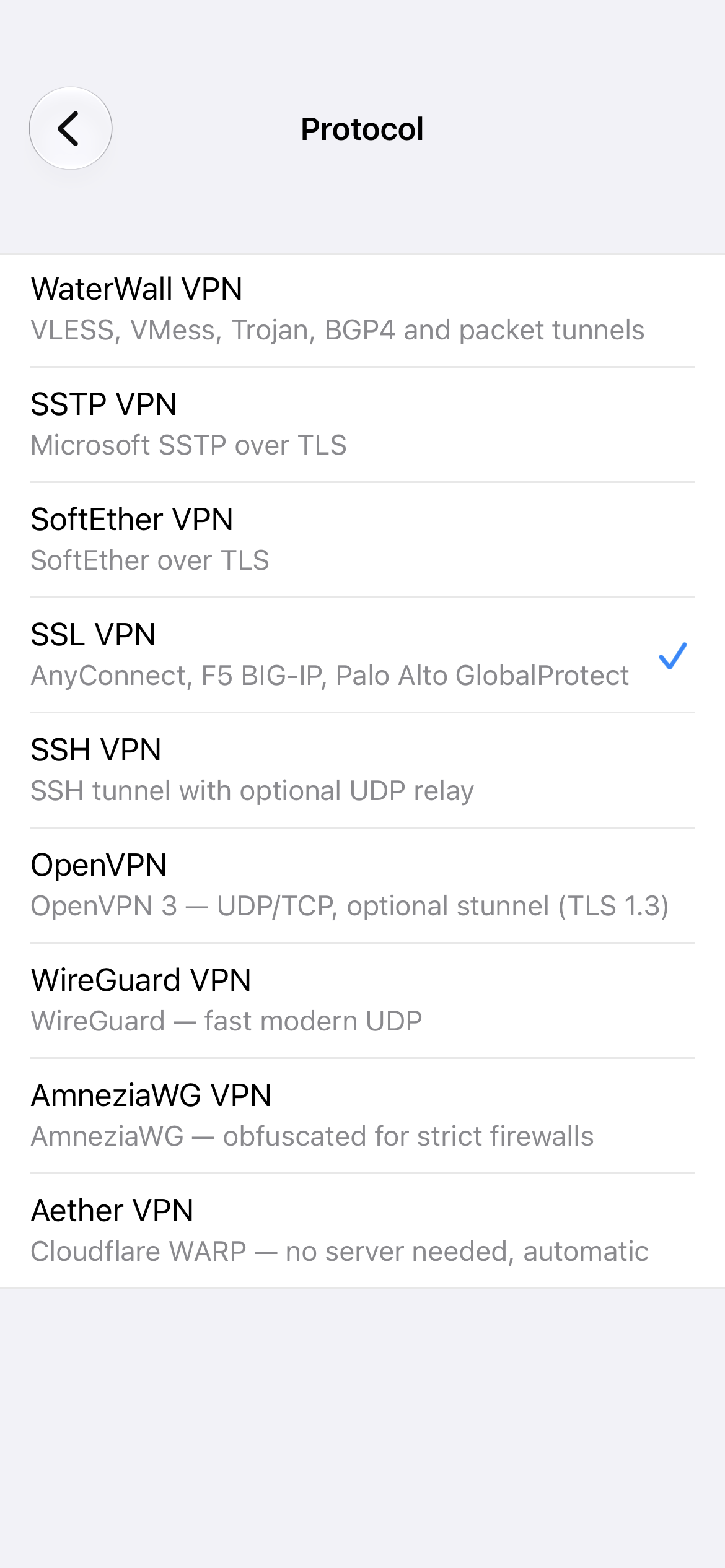
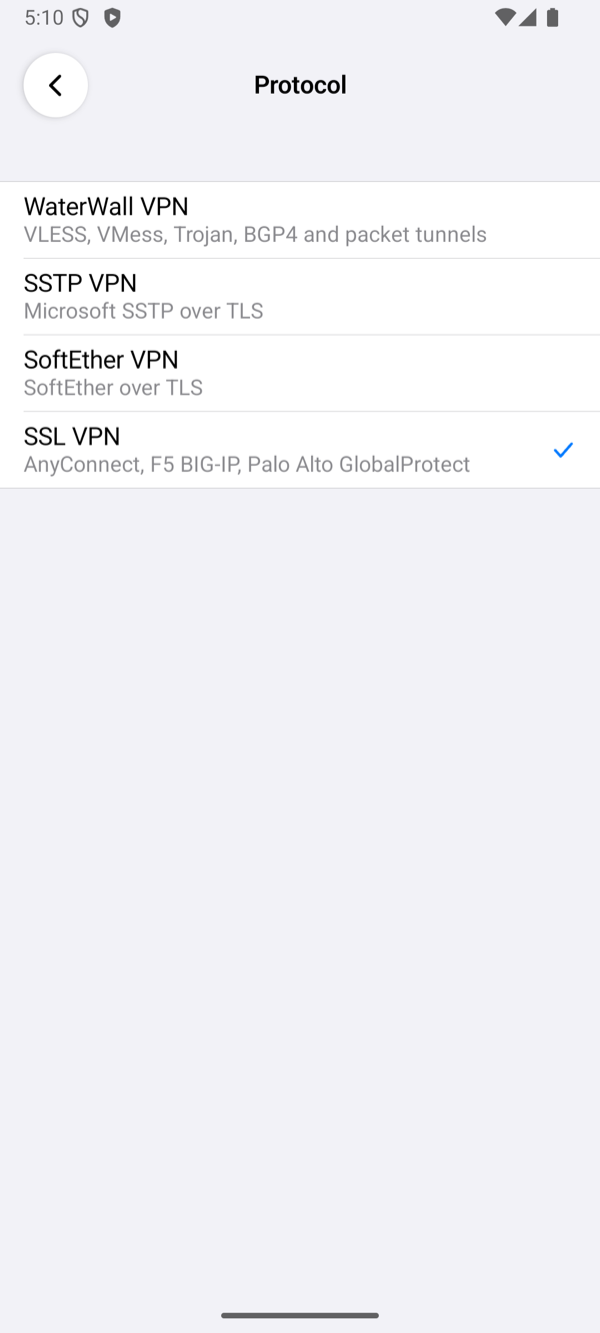
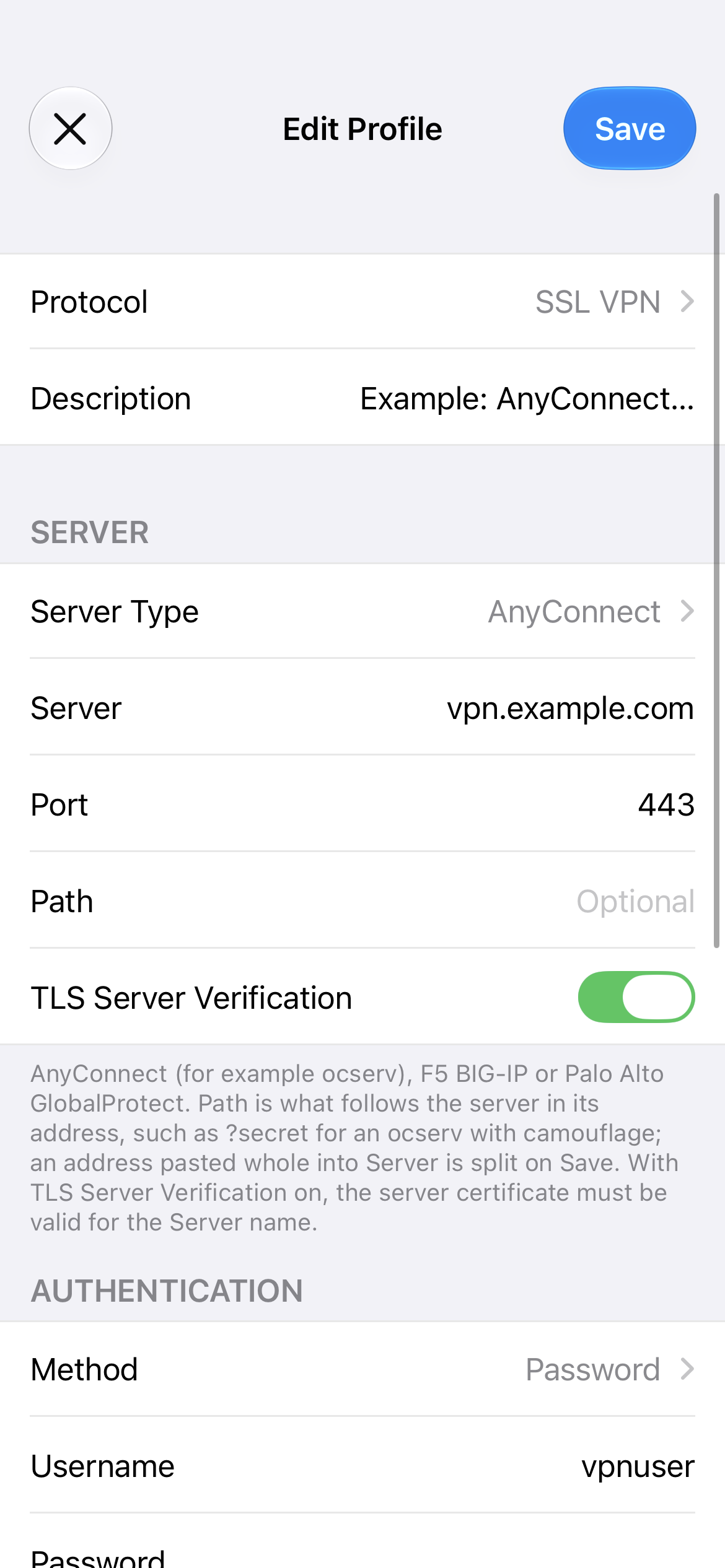
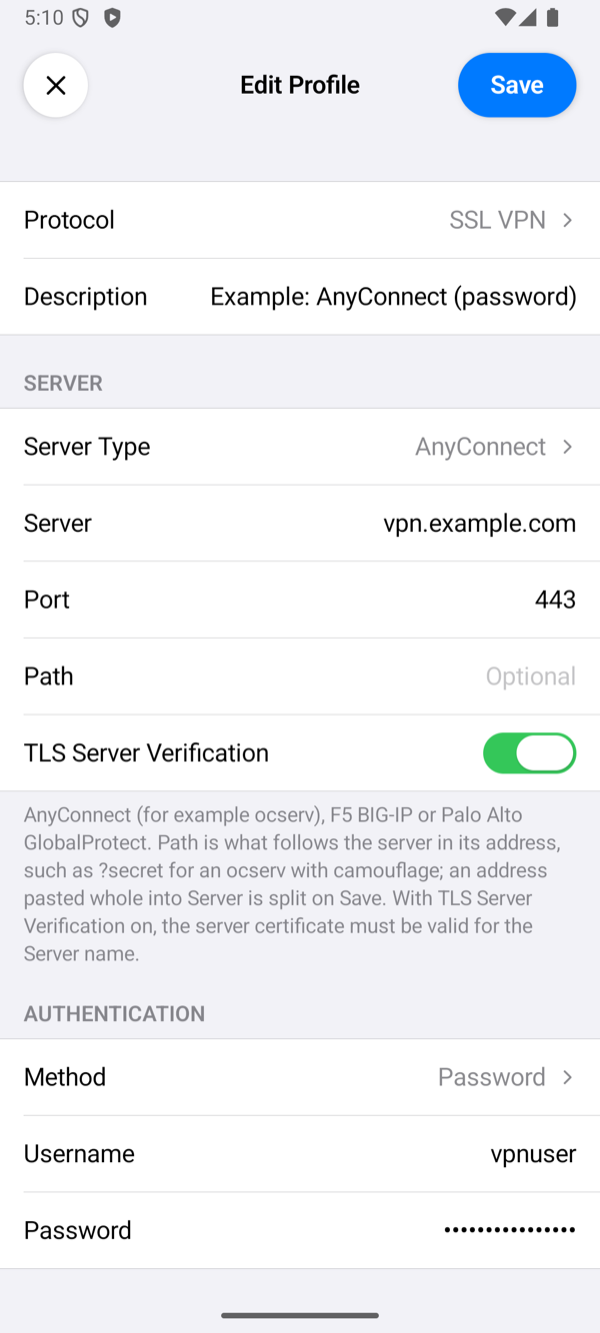
The other users of this page log in this way:
- Certificate user of part 5: set Method to Certificate, tap Certificate, then Import, choose
vpnuser.p12, and type the file's passphrase when the app asks for it. Keepvpnuserin Username: ocserv takes the user from the certificate, so the field does not change who logs in. - Split-tunnel user of part 6: Username
splituserand, in Password, the password you gaveocpasswdfor it. Only the ranges of its group then go through the tunnel.
Connect
- Tap the profile to select it, then tap the power button.
- The first time, the system asks for permission: iOS asks whether the app may add a VPN configuration, and Android shows a Connection request. Allow it.
- The status changes to Connected once the server has given the phone its address from 10.83.0.0/24, the range of part 3. The row of the profile then shows the time of one request through the tunnel.
occtl show user vpnuser on the server, as in part 8. It shows the phone's tunnel address, its routes and DNS servers, the TLS suite, and under DTLS cipher whether the data travels over DTLS (UDP). If the app shows Connection Failed instead, tap the status under the power button to open the log; Troubleshooting explains each reason. After wrong passwords, ocserv may refuse the phone's address for a while; see Wrong passwords block the address for a while.
Setting up the app describes every field.