MikroTik RouterOS
This page sets up an SSTP server on a MikroTik router from the RouterOS command line, the way our test router is set up, and connects the app to it.
Every setting below was read from our test router, a Cloud Hosted Router with RouterOS 7.25, on 6 November 2026 (/export and print). The results named on this page come from the test runs listed in Test results.
What you need
- A router with RouterOS 7. Our test router runs RouterOS 7.25 as a Cloud Hosted Router (CHR) with one public IPv4 address on
ether1. - A DNS name for the router, for example
vpn.example.com, whose A record points to the router's public address. The app checks the server's certificate against this name. - TCP port 443 open to the router for SSTP, and TCP port 80 while Let's Encrypt issues and renews the certificate.
- A terminal on the router: SSH, WinBox's New Terminal, or WebFig's terminal.
In the commands, replace the parts in angle brackets: <SERVER_HOST> is the router's DNS name, <PASSWORD> a user's password.
1. Get a certificate
SSTP runs inside TLS, so the router needs a certificate for its name. Our router uses a Let's Encrypt certificate that RouterOS requests and renews by itself. RouterOS's documentation gives this command for it; Let's Encrypt checks the name over HTTP, so the name must point to the router and TCP port 80 must be reachable from the internet.
/certificate add-acme directory-url=https://acme-v02.api.letsencrypt.org/directory domain-names=<SERVER_HOST>Wait until the certificate appears with the flags K and a, and note its name: step 4 gives it to the SSTP server. Ours is called sstp-le; use your certificate's name wherever this page says sstp-le.
/certificate print detail where common-name=<SERVER_HOST>A rename with /certificate set [find common-name=<SERVER_HOST>] name=… fails when two certificates have the same name inside, as on our router, which also keeps a self-signed certificate for tests: RouterOS answers name must be unique!.
On our router the certificate shows the flags K (it has its private key) and a (RouterOS manages it through ACME), common-name="<SERVER_HOST>", an issuer of Let's Encrypt, an RSA 2048-bit key, and an acme-status with the date of the next renewal. RouterOS renews it when 80% of its validity has passed.
A certificate from another authority works the same way: import its file and key with /certificate import and use its name in step 4. With a certificate the phone does not trust, such as a self-signed one, the app warns before every connection unless Allow Untrusted Certificate is on in the profile; see the certificate warning.
2. Addresses for the clients
Each connected phone gets an address from a pool. The router's own address in the tunnel is the PPP profile's local-address, outside the pool, and the PPP profile hands out DNS servers.
/ip pool add name=sstp-pool ranges=10.77.0.10-10.77.0.250
/ppp profile add name=sstp-profile local-address=10.77.0.1 remote-address=sstp-pool \
    dns-server=1.1.1.1,8.8.8.8 change-tcp-mss=yes use-ipv6=no
change-tcp-mss=yes lets the router lower the TCP segment size of connections through the tunnel to fit the tunnel. The app sends IPv4 only, so the profile hands out no IPv6.
3. Users
Each user is a PPP secret that may use the SSTP service.
/ppp secret add name=vpnuser password=<PASSWORD> profile=sstp-profile service=sstpUsers can also come from a RADIUS server instead; see RADIUS below.
4. Turn on the SSTP server
/interface sstp-server server set enabled=yes certificate=sstp-le default-profile=sstp-profile \
authentication=mschap2 pfs=yes/interface sstp-server server printOur router prints these values; the ones not set above are RouterOS 7.25's defaults:
                    enabled: yes
                       port: 443
                    max-mtu: 1500
                    max-mru: 1500
                       mrru: disabled
          keepalive-timeout: 60
            default-profile: sstp-profile
             authentication: mschap2
                certificate: sstp-le
  verify-client-certificate: no
                        pfs: yes
                tls-version: any
                    ciphers: aes256-sha
                             aes256-gcm-sha384
What each setting does with the app, as tested:
| Setting | Values tested | What the app needs |
|---|---|---|
authentication | mschap2 (ours), pap, chap, pap,chap,mschap1,mschap2, mschap1 | MS-CHAPv2 is the app's default and works with mschap2. For pap or chap, turn on Enable PAP / CHAP (Less Secure) in the profile. The app has no MS-CHAPv1, so a router that allows only mschap1 refuses it. RouterOS's SSTP server has no EAP, so PEAP, EAP-TTLS, TEAP and certificate login do not apply to it. |
tls-version | any (ours), only-1.2 | Both connect. RouterOS's SSTP server offers TLS 1.0 to 1.2, not TLS 1.3, so the app uses TLS 1.2 with it. |
ciphers | both (ours), aes256-gcm-sha384, aes256-sha | Each connects. |
pfs | yes (ours), required | Both connect. |
max-mtu, max-mru | 1500 (ours), 1400 | Both connect. |
mrru | disabled (ours), 1600 | Both connect. |
5. Let the clients reach the internet
The phones' traffic leaves the router with the router's own address. Our router has one masquerade rule for this:
/ip firewall nat add chain=srcnat action=masqueradeThat rule masquerades everything that leaves the router. To limit it to the SSTP clients, add src-address=10.77.0.0/24 out-interface=ether1, with your router's internet interface instead of ether1.
Our test router has no input firewall rule that drops traffic, so nothing more was needed for TCP 443 to reach the SSTP server. If your router drops input by default, it needs a rule that accepts TCP 443 (and TCP 80 for the certificate) before the drop rule.
RADIUS (optional)
RouterOS can check SSTP logins against a RADIUS server. Ours asks the FreeRADIUS server described in FreeRADIUS. RouterOS still checks its own PPP secrets first, so a user that exists in both places logs in with the local password.
/radius add address=<RADIUS_IP> secret=<RADIUS_SECRET> service=ppp timeout=3s
/ppp aaa set use-radius=yes
With RADIUS, a RADIUS user logged in with MS-CHAPv2 and, with the router set to authentication=pap, with PAP. A wrong password ends with the app's authentication message.
Check the server
/interface sstp-server server print
/ppp active print
/log print where topics~"sstp|ppp"
While a phone is connected, /ppp active print lists its user, the service sstp and the address it got from the pool. RouterOS logs the SSTP and PPP steps under the topics sstp and ppp; to keep more of them, add a logging rule such as /system logging add topics=sstp action=memory.
6. Set up the app on the phone
Install SRP VPN Connect first, on iPhone or on Android. An SSTP profile has the same fields on both, so the steps below are the same, except for the permission the first connection asks for.
Create the profile
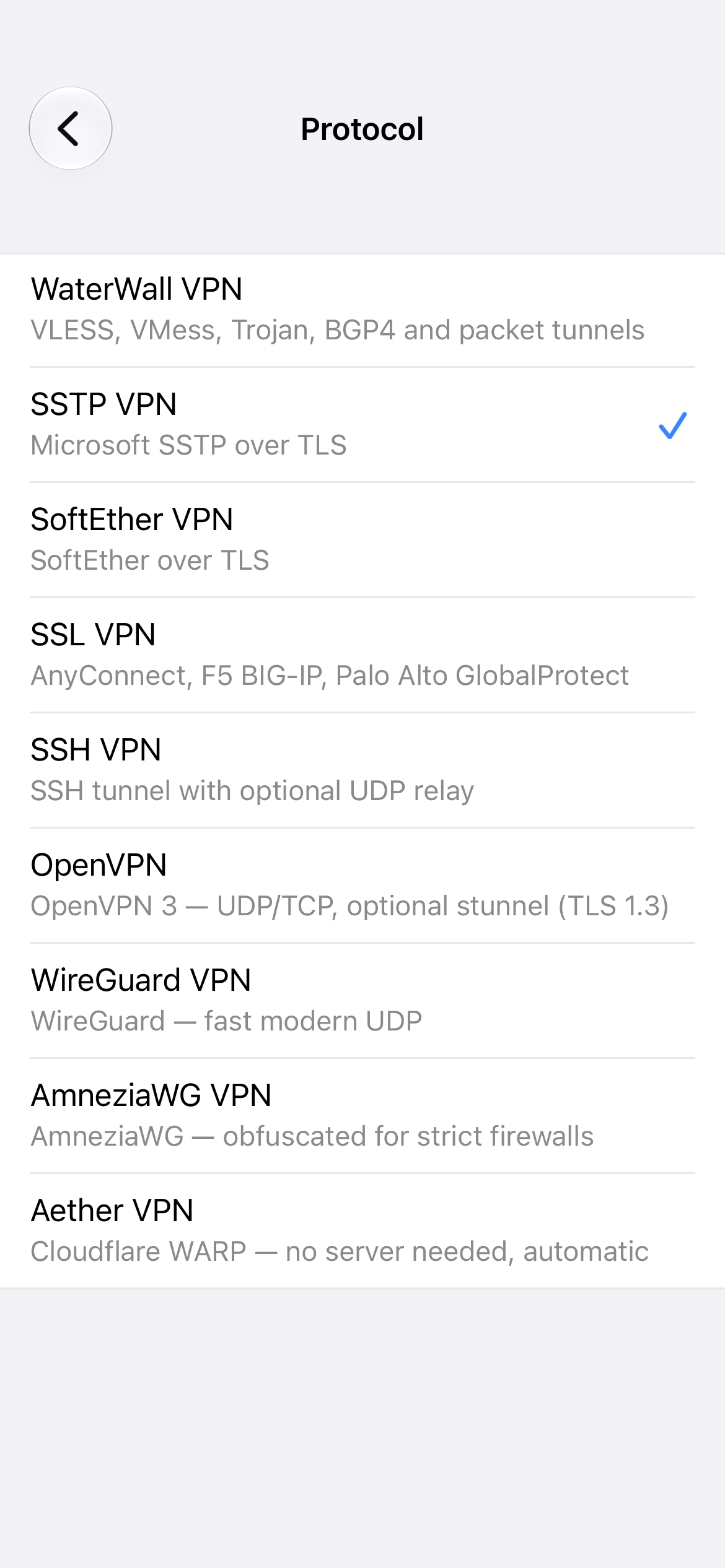
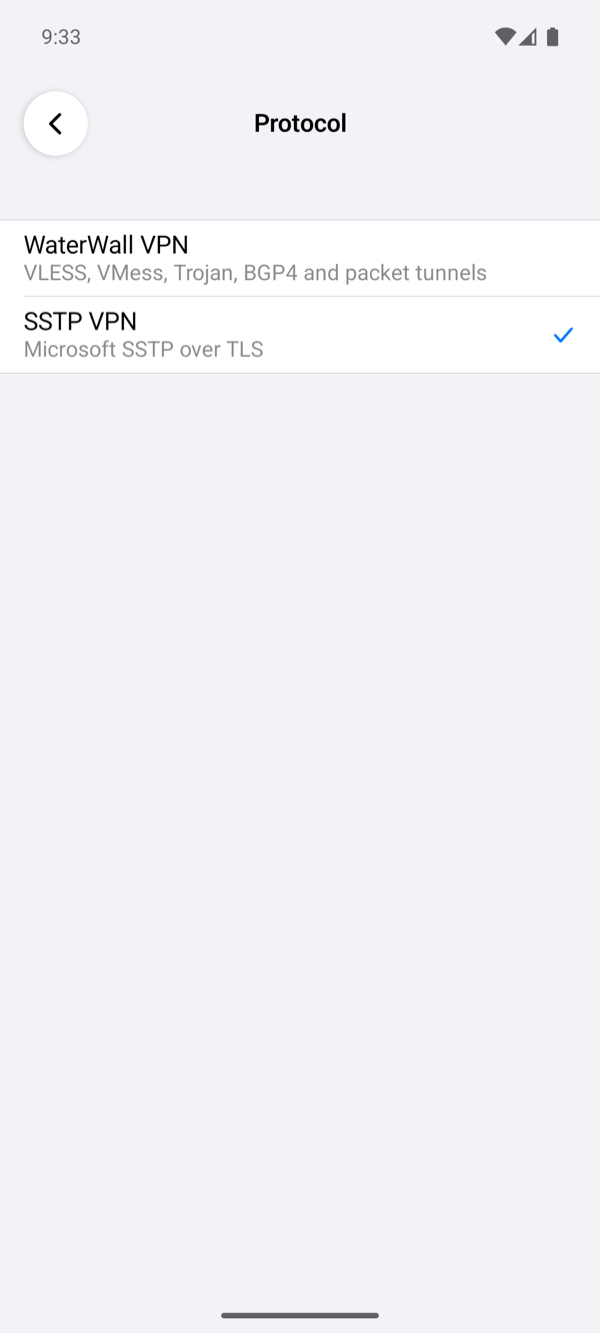
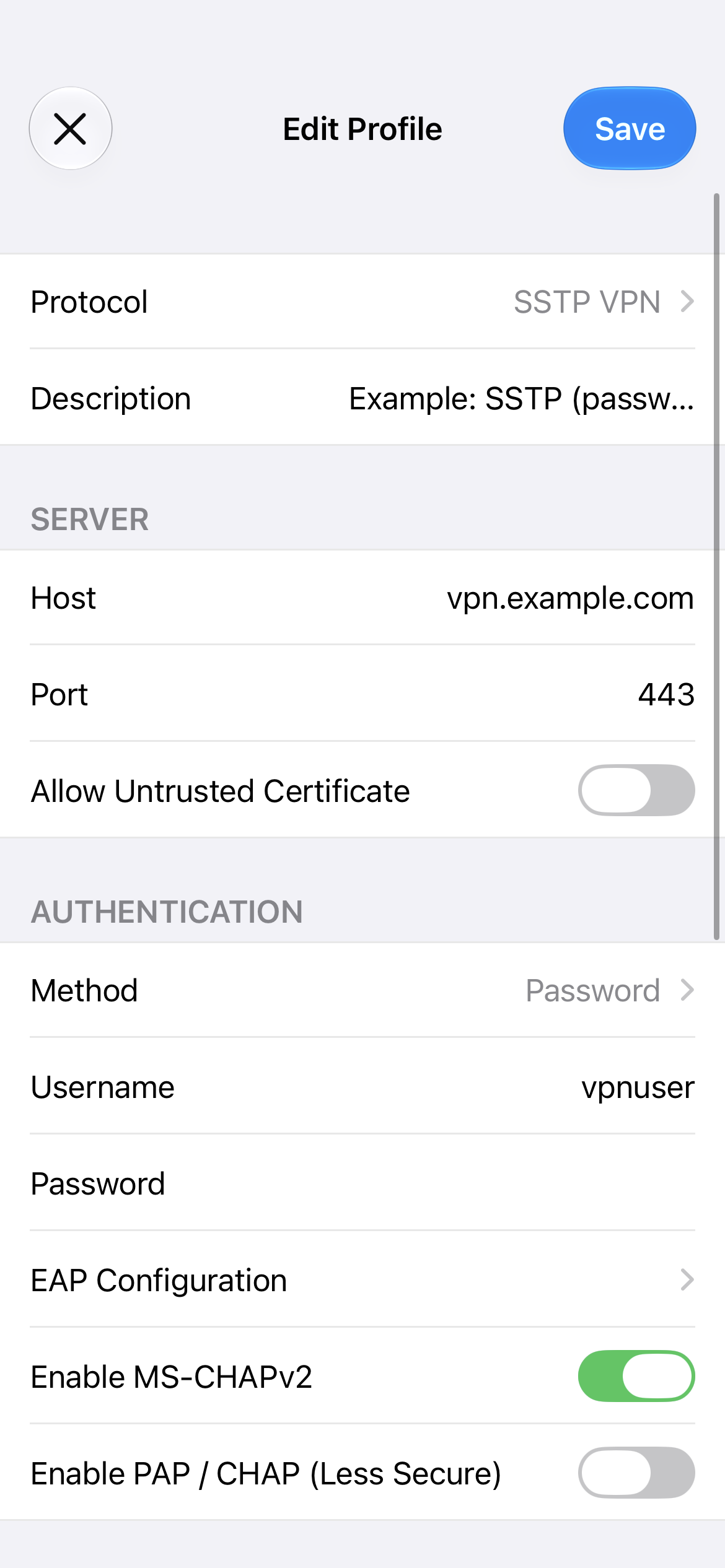
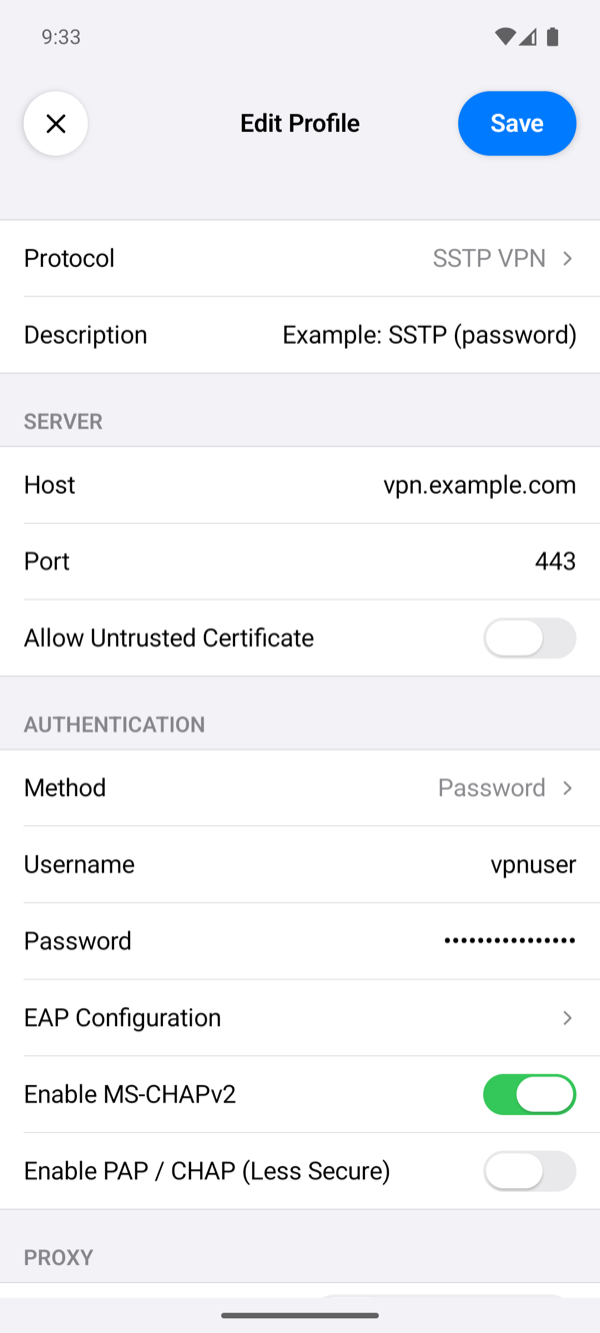
- On the home screen, tap +, tap Protocol and choose SSTP VPN.
- Description: optional, the profile's name on the home screen. When it is empty, the home screen shows the server's name or address.
- Host: the router's DNS name,
<SERVER_HOST>, which the certificate from step 1 is for. Use the name, not the IP address: the app checks the certificate against Host. - Port:
443, theportthat the check of step 4 prints. An empty Port means 443 too. - Allow Untrusted Certificate: leave it off. For a certificate the phone does not trust, see step 1.
- Method: Password, the default.
- Username:
vpnuser, the PPP secret you made in step 3. Password: its<PASSWORD>. A user of the RADIUS server (RADIUS) logs in the same way, with its own name and password; a name that is also a PPP secret on the router logs in with the router's password. - Leave Enable MS-CHAPv2 on and Enable PAP / CHAP (Less Secure) off: the router accepts MS-CHAPv2 (
authentication=mschap2, step 4). RouterOS's SSTP server has no EAP, so EAP Configuration and certificate login do not apply to it. - Leave everything under Proxy and Options as it is, and tap Save.
If you set the router's authentication to pap or chap instead (step 4), turn on Enable PAP / CHAP (Less Secure).
Connect
- On the home screen, select the profile and tap the power button.
- The first time, the system asks for permission: iOS asks whether the app may add a VPN configuration, and Android shows a Connection request. Allow it.
- The status changes to Connected once the server has assigned the phone an address, and the profile's row shows the time of one request through the tunnel.
On the router, /ppp active print lists vpnuser with the service sstp and an address from sstp-pool, as in Check the server. If the app shows Connection Failed instead, tap the status under the power button to read the log, and see Troubleshooting.
Setting up the app describes every field.